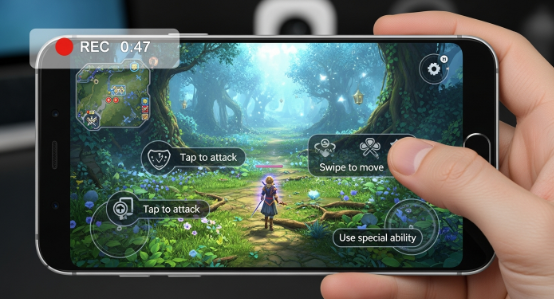
Screen recording Android helps you capture every action happening on your Android device. You can save gameplay, tutorials, video calls, and app demonstrations easily. Many devices come with built-in recording features, while others support advanced tools for more control. This guide explains how to screen record Android smoothly with simple instructions and detailed insights.
What Is Screen Record Android
Screen record Android refers to capturing real-time activities displayed on your phone screen in video format. You can record anything including apps, browsing, chats, settings, and games. Many devices include native controls for recording, while others allow third-party apps. Therefore, you gain flexibility depending on your purpose.
How to Screen Record Android on Default Tools
Most newer Android smartphones include built-in recording tools. Users can open Quick Settings, tap the screen recorder icon, and begin recording instantly. You may enable or disable audio input during setup. Eventually, the video file saves automatically in your gallery for sharing or editing.
Steps to Start Screen Recording on Android
You can begin with just a few taps. Follow these instructions carefully:
- Swipe down to open Quick Access Panel
- Locate the Screen Record toggle
- Tap to activate recording
- Choose audio preference
- Hit Start and capture activity
Later, tap Stop to end the session. Your device stores the file instantly.
Enable Screen Record Android If Toggle Is Missing
Some phones hide the recorder shortcut. Users can edit Quick Settings and add the feature manually. Long-press the notification panel and drag the Screen Recorder icon into visible tiles. Restarting your phone refreshes system tools. Although rarely needed, this step brings recorder access forward.
Screen Record Android With Third-Party Apps
When built-in tools feel limited, third-party apps provide better features. Many offer frame rate control, floating widgets, internal audio, and front camera overlay. Gamers prefer this method for high-resolution export and unlimited duration. Additionally, editors and YouTubers use advanced settings to achieve professional quality output.
Best Practices Before You Screen Record Android
Preparation plays a big role in recording clarity. Close background apps to prevent lag or pop-ups. Reduce notification sounds and disable vibrations. Unclutter your home screen for a clean tutorial look. Meanwhile, ensure storage space is sufficient to save long recordings without interruption.
Record Internal Audio Effectively on Android
Internal sound recording enhances gameplay and app tutorials. Although some phones restrict internal audio due to software limitations, new versions support it directly. You may toggle microphone or internal sound options before recording. Because clear audio improves viewer experience, test voice levels before publishing.
Optimize Quality While Using Screen Record Android
Smooth quality matters. Adjust screen resolution to match your device display. Increasing frame rate helps action-packed content like gaming appear fluid. Reduce brightness if the recording seems overexposed. Furthermore, enable Do Not Disturb to avoid interruptions mid-capture. Consistent quality helps viewers engage longer.
Screen Record Android Gameplay Without Lag
Gamers require seamless performance. Free memory by clearing cache first. Record at 60fps when possible since motion appears natural. Stable power connection prevents overheating and sudden stop. Thus, you maintain smooth recording while playing resource-heavy titles. Many users also lower graphics slightly to improve responsiveness.
How to Locate Recorded Files Easily
Finding screen recordings remains effortless. Most devices save recordings in the Movies or ScreenRecorder folder. Users may open the gallery and search inside albums. You can rename recordings for better organization. Later, move them to cloud storage or editing apps quickly for further customization.
Troubleshooting Screen Record Android Issues
Sometimes the recorder may not work. Permission settings could block access to microphone or media storage. Update system software for compatibility. Restarting often fixes temporary bugs. Although rare, overheating may automatically pause recording. Allow the phone to cool before capturing again.
Conclusion
You can now screen record Android confidently and produce tutorials, gameplay videos, walkthroughs, or training material anytime. Apply the techniques shared here and experiment with audio, resolution, and app support. If you want better engagement, start recording today and share your experience with the world.
FAQs
1. Does every phone support screen record Android?
Most Android phones include built-in screen recording, while older versions may require third-party apps.
2. Can I record calls using screen record Android?
Call recording depends on device policies and privacy regulations, so results vary between models.
3. Where do screen recordings get saved?
Recordings usually appear in the Movies or ScreenRecorder folder inside the gallery.
4. Why is my screen recording lagging?
Insufficient storage, background apps, or high graphics load may cause recording lag.
5. How long can I screen record Android?
You can record as long as storage and battery allow, unless app limits shorten duration.